
Getting Started
Icon Pack Builder creates trimmed, strongly-typed font icon packs for your application from the Seagull Fluent Icons font, a single-font build of Microsoft's Fluent UI System Icons. You pick the icons and variants your app uses, and the builder exports:
- A subset font (
.otf) containing only the glyphs you selected, typically a few tens of kilobytes instead of over a megabyte. - A generated C# class with a static member per icon, so icons are referenced by name and the compiler catches typos.
- A CSS stylesheet and a JavaScript module (with TypeScript declarations) for using the same pack in web apps. See Other Platforms.
Right-to-left versions of directional icons are included automatically (see Right-to-Left Support), and the small Singulink.UI.Icons support packages display the correct glyph for the current flow direction in each UI framework.
Packages
| Package | Purpose |
|---|---|
| Singulink.UI.Icons | Base types used by generated packs (IIconGlyph, IconGlyph, IconWithRtlGlyph). Framework-agnostic; sufficient on its own for Windows Forms or any framework that renders text. |
| Singulink.UI.Icons.WinUI | Flow direction aware font icons for WinUI 3 and Uno Platform. |
| Singulink.UI.Icons.Wpf | Flow direction aware font icons for WPF. |
| Singulink.UI.Icons.Avalonia | Flow direction aware font icons for Avalonia. |
| Singulink.UI.Icons.Maui | Flow direction aware font icons for .NET MAUI. |
Reference the base package from projects that only need to refer to icons (for example a view model project) and the framework package from the UI project.
Building an Icon Pack
The quickest way to try Icon Pack Builder is the browser version, which needs nothing installed: projects are kept in the browser's local storage (or opened from a .ipproj file on your computer) and exports download as a zip containing the font, the generated files and the project file. The first export also downloads the font subsetter, about 10 MB.
For day-to-day use, Icon Pack Builder is distributed as a .NET global tool that runs on Windows, macOS and Linux:
dotnet tool install -g Singulink.IconPackBuilder
Run iconpackbuilder to open the start screen, or pass a project file to open it directly:
iconpackbuilder MyApp.FontIcons.ipproj
iconpackbuilder --register-file-association makes .ipproj files open in the builder from the file explorer (Windows and Linux, current user only).
If you work in Visual Studio Code, the Singulink Icon Pack Builder extension opens .ipproj files in the same editor inside VS Code: the project is a regular document with dirty state, save and undo, Icon Pack Builder: New Icon Pack Project... creates projects, and exports are written next to the project with the bundled font subsetter, so no .NET SDK or Python is needed. Packages are published for Windows (x64), macOS (Intel and Apple Silicon) and Linux (x64 and Arm64).
The source lives in the IconPackBuilder folder of the repository, which also builds a native WinAppSDK head for Windows and the WebAssembly head that powers both the browser version and the extension.
- Create a project. The project name must be in
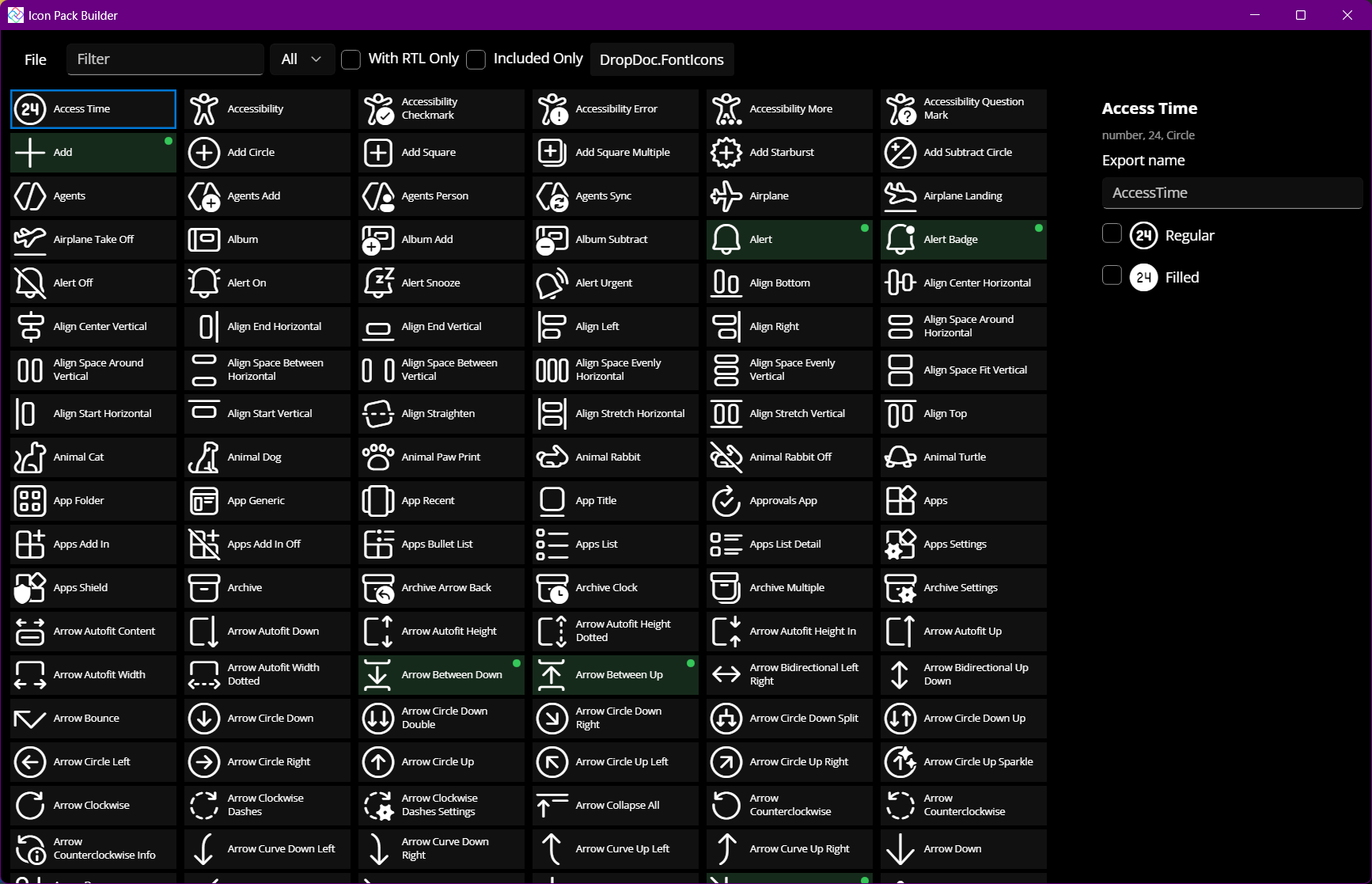
Namespace.Classformat, for exampleMyApp.FontIcons. This becomes the namespace and class name of the generated code. The project is saved as a small JSON.ipprojfile that you can commit alongside your app. The builder never locks the file, and reloads it if it changes on disk (for example after a branch switch), so it is safe to keep open while you work. - Find icons. The filter matches icon names and the metaphors (keywords) from Microsoft's icon metadata, so searching for "trash" finds Delete and "house" finds Home. The description of the selected icon is shown in the side panel. Use the variant dropdown to browse a single variant (Regular, Filled, Color or Light), With RTL Only to see icons that have a distinct right-to-left glyph, and Included Only to review your selection.
- Select variants. Tick the variants you need for each icon. Each ticked variant becomes a member of the generated class: the first variant of the source (Regular) uses the icon name on its own, other variants append the variant name, e.g.
SaveandSaveFilled. - Rename if needed. The export name defaults to the icon's identifier. Override it to give an icon an app-specific name, e.g. export
AlertasNotifications. - Save and export. Export writes a
<ProjectName>_Exportfolder beside the project file containing the subset font<ProjectName>.otf, the generated<Class>.cs,<Class>.cssand<Class>.js(with<Class>.d.ts). File → Export Formats turns individual outputs off; the selection is saved in the project so scripted exports produce the same files. Preview shows the exported icons rendered with the subset font.
The generated class looks like this:
// <auto-generated>
// Generated by Icon Pack Builder
// </auto-generated>
using Singulink.UI.Icons;

namespace MyApp;

public static class FontIcons
{
    public static IconGlyph Add { get; } = new(0xF0008);
    public static IconWithRtlGlyph Back { get; } = new(0xF0048, 0x100048);
    public static IconGlyph Save { get; } = new(0xF03E4);
    public static IconGlyph SaveFilled { get; } = new(0xF03E5);
}
Every member implements IIconGlyph, which exposes the code point and glyph string for both flow directions. Icons with a distinct right-to-left glyph are generated as IconWithRtlGlyph; all others as IconGlyph, whose right-to-left members simply return the regular glyph.
Adding the Pack to Your App
- Add the font file to the UI project as an asset (the exact mechanism depends on the framework; see the framework guides).
- Add the generated
.csfile to a project that references Singulink.UI.Icons. A shared project works well if view models need to pick icons. - Refer to the font by its family name, Seagull Fluent Icons. Subsetting does not change the family name.
If your app never runs right-to-left, the base package is all you need: every generated member converts to its regular glyph string through ToString(), so bind it to any text or glyph property, such as FontIcon.Glyph, TextBlock.Text or Label.Text, with the icon font applied (bindings do the conversion; a direct x:Static assignment to a string property does not). The framework packages add one thing on top: switching to the right-to-left glyph when the element's flow direction is right-to-left (see Right-to-Left Support).
Then follow the guide for your UI framework:
Updating a Pack
Re-open the .ipproj, adjust the selection and export again. Icon identifiers and code points are stable across Seagull releases, so an existing project keeps exporting the same code points when the builder is updated to a newer icon set; new icons simply become available.
Scripted Exports
The export can also run without the editor, for build scripts and CI:
iconpackbuilder export MyApp.FontIcons.ipproj
It writes the same export folder as File → Export and exits with a non-zero code if the project cannot be exported in full, for example when an icon in the project is missing from the builder's icon source. Combine it with a git diff --exit-code on the export folder to verify that committed exports are up to date.